<!DOCTYPE HTML PUBLIC "-//W3C//DTD HTML 3.2//EN">
<HTML>

<HEAD>
	<META HTTP-EQUIV="Content-Type" CONTENT="text/html;CHARSET=iso-8859-1">
	<META NAME="GENERATOR" Content="Visual Page 2.0 for Windows">
	<TITLE>Test Score Discrepancy Analyzer 2.0 On-Line Manual</TITLE>
</HEAD>

<BODY BGCOLOR="white">

<FORM ACTION="default.cgi" METHOD="POST" ENCTYPE="application/x-www-form-urlencoded" NAME="form">
<CENTER>
<P><SCRIPT LANGUAGE="JavaScript">
<!--
function goToLocation() {

locationString=(document.form.locationSelection.options[document.form.locationSelection.selectedIndex].value);

if(locationString!="nullValue"){
document.location=locationString;
}
}
//-->
</SCRIPT><B><A
HREF="javaScript:window.close();"><FONT FACE="Courier New, Courier">Close Window</FONT></A></B> <BR>

<TABLE BORDER="0" CELLSPACING="0" WIDTH="100%" BGCOLOR="#CC0000">
	<TR>
		<TD><IMG SRC="graphics/pixelgif.gif" WIDTH="1" HEIGHT="1" ALIGN="BOTTOM" BORDER="0"></TD>
	</TR>
</TABLE>

<TABLE BORDER="0">
	<TR>
		<TD VALIGN="TOP"><IMG SRC="http://www.interventioncentral.com/graphics/tools/tsa/compass.gif" WIDTH="40" HEIGHT="40" ALIGN="BOTTOM"
			BORDER="1"></TD>
		<TD><A NAME="topAnchor"></A><I><FONT SIZE="6" COLOR="#000099" FACE="Arial, Helvetica">Test Score Discrepancy <BR>
			Analyzer 2.0 On-Line Manual</FONT></I></TD>
	</TR>
</TABLE>

<TABLE BORDER="0" CELLSPACING="0" WIDTH="186" BGCOLOR="#999999">
	<TR>
		<TD>
			<TABLE BORDER="0" CELLSPACING="0" WIDTH="295" BGCOLOR="white">
				<TR>
					<TD VALIGN="TOP" COLSPAN="2">
						<CENTER>
						<P><I><FONT COLOR="#333333" FACE="Arial, Helvetica">Select a Section of This Manual To Visit</FONT></I><FONT COLOR="#333333"
						FACE="Arial, Helvetica"> 
						<SELECT NAME="locationSelection" onChange="goToLocation()">
						<OPTION VALUE="nullValue" SELECTED>(Select Manual Section)</OPTION>
						<OPTION VALUE="http://www.interventioncentral.com/htmdocs/tools/tsa/tsamanual/tsamanual.shtml#Introduction">Introduction</OPTION>
						<OPTION VALUE="http://www.interventioncentral.com/htmdocs/tools/tsa/tsamanual/tsamanual.shtml#Basic">Basic Navigation</OPTION>
						<OPTION VALUE="http://www.interventioncentral.com/htmdocs/tools/tsa/tsamanual/tsamanual.shtml#Test">Test Date &amp; Student Age</OPTION>
						<OPTION VALUE="http://www.interventioncentral.com/htmdocs/tools/tsa/tsamanual/tsamanual.shtml#Rule">Rule-Outs</OPTION>
						<OPTION VALUE="http://www.interventioncentral.com/htmdocs/tools/tsa/tsamanual/tsamanual.shtml#IQ">IQ Test Selection</OPTION>
						<OPTION VALUE="http://www.interventioncentral.com/htmdocs/tools/tsa/tsamanual/tsamanual.shtml#Achievement">Achievement Test Selection</OPTION>
						<OPTION VALUE="http://www.interventioncentral.com/htmdocs/tools/tsa/tsamanual/tsamanual.shtml#Preferred">Preferred Settings</OPTION>
						<OPTION VALUE="http://www.interventioncentral.com/htmdocs/tools/tsa/tsamanual/tsamanual.shtml#TSA">TSA 2.0 Discrepancy Report</OPTION>
						<OPTION VALUE="http://www.interventioncentral.com/htmdocs/tools/tsa/tsamanual/tsamanual.shtml#testAbbreviations">Test Abbreviations List</OPTION>
						<OPTION VALUE="http://www.interventioncentral.com/htmdocs/tools/tsa/tsamanual/tsamanual.shtml#References">References</OPTION>
						</SELECT>
 </FONT><A HREF="javascript: goToLocation()"><FONT COLOR="#333333" FACE="Arial, Helvetica"><IMG SRC="http://interventioncentral.com/graphics/sitewide/miscellaneous/gobutton.gif"
						WIDTH="43" HEIGHT="29" ALIGN="TOP" BORDER="0"></FONT></A>
</CENTER>
					</TD>
				</TR>
			</TABLE>
		</TD>
	</TR>
</TABLE>

<TABLE BORDER="0" CELLSPACING="0" WIDTH="100%" BGCOLOR="#CC0000">
	<TR>
		<TD><IMG SRC="graphics/pixelgif.gif" WIDTH="1" HEIGHT="1" ALIGN="BOTTOM" BORDER="0"></TD>
	</TR>
</TABLE>
</P>
</CENTER>
<P>
<TABLE BORDER="0" CELLPADDING="0" CELLSPACING="0" WIDTH="100%">
	<TR>
		<TD WIDTH="100%"><A NAME="Introduction"></A><FONT SIZE="5" FACE="Arial, Helvetica">Introduction.</FONT> <BR>
			Test Score Discrepancy Analyzer 2.0 (TSA 2.0) is a web-based application that runs discrepancy analyses between
			intelligence and academic achievement tests. The program uses a statistical formula that accounts for regression
			(degree of correlation) between a student's IQ and achievement test scores. (For a complete overview of the statistical
			formulas used in this discrepancy software, go to <A HREF="tsamanual.shtml">Best Practices in Test Score Discrepancy
			Analysis</A> on this web site.) This brief manual provides basic operating instructions for the TSA 2.0.</TD>
	</TR>
	<TR>
		<TD WIDTH="100%">
			<TABLE BORDER="0" CELLPADDING="0" CELLSPACING="0" WIDTH="100%">
				<TR>
					<TD WIDTH="94%" HEIGHT="6" VALIGN="BOTTOM">&nbsp;</TD>
					<TD WIDTH="11" HEIGHT="6" VALIGN="BOTTOM"><A HREF="#topAnchor"><IMG SRC="graphics/toparrow.gif" WIDTH="11" HEIGHT="6" ALIGN="RIGHT" BORDER="0"></A></TD>
				</TR>
				<TR>
					<TD VALIGN="TOP" COLSPAN="2">
<HR ALIGN="RIGHT" SIZE="1" NOSHADE>
					</TD>
				</TR>
			</TABLE>
		</TD>
	</TR>
	<TR>
		<TD WIDTH="100%"><A NAME="Basic"></A><FONT SIZE="5" FACE="Arial, Helvetica">Basic Navigation.</FONT><BR>
			In using the TSA 2.0, you visit a series of web pages and enters 
			<TABLE ALIGN="LEFT" BORDER="0" CELLSPACING="0" BGCOLOR="#CCCCFF">
				<TR>
					<TD><B><FONT COLOR="blue" FACE="Courier New, Courier">Figure 1: Top Navigation Bar</FONT></B></TD>
				</TR>
				<TR>
					<TD><IMG SRC="graphics/topnavbar.gif" WIDTH="605" HEIGHT="76" ALIGN="LEFT" BORDER="1"></TD>
				</TR>
				<TR>
					<TD><IMG SRC="graphics/pixelgif.gif" WIDTH="1" HEIGHT="5" ALIGN="BOTTOM" BORDER="0"></TD>
				</TR>
			</TABLE>
information into forms about the tests that are being compared. You can travel conveniently through the program
			by clicking on the navigation bar that appears at the top of each page (see Figure 1). Page destinations are listed
			at the top of the navigation bar. The page currently being visited is highlighted in gray. You can visit pages
			in any order. Three 'function buttons' also appear on the navigation bar. The button &quot;Start New Report&quot;
			will erase any information that you have already entered on a particular student and present you with a blank Background
			Information page for you to start a new report. The button &quot;View Test Report&quot; submits all user-entered
			test information to a web server, which completes a test discrepancy analysis and displays the resulting report
			in a separate browser window. The button &quot;Open Help Manual&quot; displays the TSA 2.0 On-Line Manual in a
			separate window.</TD>
	</TR>
	<TR>
		<TD WIDTH="100%">
			<TABLE BORDER="0" CELLPADDING="0" CELLSPACING="0" WIDTH="100%">
				<TR>
					<TD WIDTH="94%" HEIGHT="6" VALIGN="BOTTOM">&nbsp;</TD>
					<TD WIDTH="11" HEIGHT="6" VALIGN="BOTTOM"><A HREF="#topAnchor"><IMG SRC="graphics/toparrow.gif" WIDTH="11" HEIGHT="6" ALIGN="RIGHT" BORDER="0"></A></TD>
				</TR>
				<TR>
					<TD VALIGN="TOP" COLSPAN="2">
<HR ALIGN="RIGHT" SIZE="1" NOSHADE>
					</TD>
				</TR>
			</TABLE>
		</TD>
	</TR>
	<TR>
		<TD WIDTH="100%"><A NAME="Background"></A><FONT SIZE="5" FACE="Arial, Helvetica">Background Information.<BR>
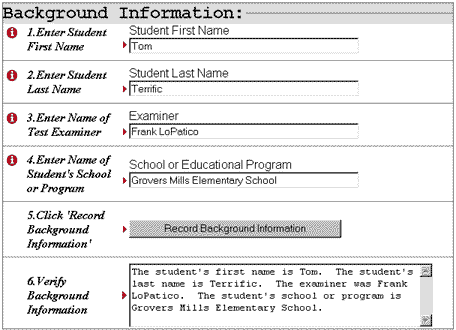
			</FONT>The first screen that the user encounters in the TSA 2.0 
			<TABLE ALIGN="LEFT" BORDER="0" CELLPADDING="0" CELLSPACING="3" BGCOLOR="#CCCCFF">
				<TR>
					<TD><B><FONT COLOR="blue" FACE="Courier New, Courier">Figure 2: Background Information Page</FONT></B></TD>
				</TR>
				<TR>
					<TD><IMG SRC="graphics/backgrndpg.gif" WIDTH="456" HEIGHT="330" ALIGN="BOTTOM" BORDER="1"></TD>
				</TR>
				<TR>
					<TD><IMG SRC="graphics/pixelgif.gif" WIDTH="1" HEIGHT="5" ALIGN="BOTTOM" BORDER="0"></TD>
				</TR>
			</TABLE>
is the <I>Background Information</I><B> </B>page. This page collects information that will appear in the introductory
			section of the TSA 2.0 report. <BR>
			<BR>
			In this section, you enter the student's first and last names, the name of the examiner who completed testing,
			and the student's school or educational program. You can also leave selected boxes blank; on the final report,
			these values will appear as &quot;unidentified&quot;.<BR>
			<BR>
			Please note that information that you enter is not formally recorded until you click the &quot;Record Background
			Information&quot; button. Once the information has been entered, you should check the box &quot;Verify Background
			Information&quot; to see that the entered data is correct and appears in a form appropriate for display in the
			final test discrepancy report.<BR>
			<BR>
			You are <I>not</I> required to enter any identifying information on this page. If background information is not
			entered, the final test report will simply note that student, examiner, and school are &quot;unidentified&quot;.
			<BR>
			<BR>
			Clinicians concerned about issues of confidentiality when submitting student information to an Internet site may
			wish to leave this form blank. Alternatively, clinicians may decide to enter only the student's initials to preserve
			anonymity.</TD>
	</TR>
	<TR>
		<TD WIDTH="100%">
			<TABLE BORDER="0" CELLPADDING="0" CELLSPACING="0" WIDTH="100%">
				<TR>
					<TD WIDTH="94%" HEIGHT="6" VALIGN="BOTTOM">&nbsp;</TD>
					<TD WIDTH="11" HEIGHT="6" VALIGN="BOTTOM"><A HREF="#topAnchor"><IMG SRC="graphics/toparrow.gif" WIDTH="11" HEIGHT="6" ALIGN="RIGHT" BORDER="0"></A></TD>
				</TR>
				<TR>
					<TD VALIGN="TOP" COLSPAN="2">
<HR ALIGN="RIGHT" SIZE="1" NOSHADE>
					</TD>
				</TR>
			</TABLE>
		</TD>
	</TR>
	<TR>
		<TD WIDTH="100%"><A NAME="Test"></A><FONT SIZE="5" FACE="Arial, Helvetica">Test Date &amp; Student Age.</FONT> <BR>
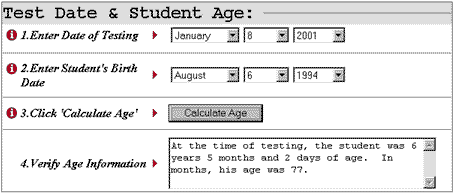
			On this page, 
			<TABLE ALIGN="LEFT" BORDER="0" CELLPADDING="3" CELLSPACING="0" BGCOLOR="#CCCCFF">
				<TR>
					<TD><B><FONT COLOR="blue" FACE="Courier New, Courier">Figure 3: Test Date &amp; Student Age Page</FONT></B></TD>
				</TR>
				<TR>
					<TD><IMG SRC="graphics/agepg.gif" WIDTH="454" HEIGHT="193" ALIGN="BOTTOM" BORDER="1"></TD>
				</TR>
				<TR>
					<TD><IMG SRC="graphics/pixelgif.gif" WIDTH="1" HEIGHT="5" ALIGN="BOTTOM" BORDER="0"></TD>
				</TR>
			</TABLE>
you enter both the date on which the student was tested and that student's date of birth. This information is required,
			as the TSA 2.0 application must have both dates in order to compute a student age (which in turn is used to look
			up test statistics). Use the pre-formatted drop-menus to enter date information. Your date entries are not formally
			recorded until you click the &quot;Calculate Age&quot; button. <BR>
			<BR>
			To compute student age, this application uses the method presented in Wechsler (1991) one widely used by clinicians
			to calculate student age by hand. The student's date of birth is subtracted from the date of testing. For the purposes
			of age calculation, all ages are assumed to have 30 days. Also, student ages are not rounded up to the nearest
			month.<BR>
			<BR>
			Often, examiners take several sessions to complete testing with a student, making it difficult to select a single
			&quot;testing date&quot;. While you have latitude in such situations about what test date to enter, we generally
			recommend that you select a date on which academic achievement testing was administered.</TD>
	</TR>
	<TR>
		<TD WIDTH="100%">
			<TABLE BORDER="0" CELLPADDING="0" CELLSPACING="0" WIDTH="100%">
				<TR>
					<TD WIDTH="94%" HEIGHT="6" VALIGN="BOTTOM">&nbsp;</TD>
					<TD WIDTH="11" HEIGHT="6" VALIGN="BOTTOM"><A HREF="#topAnchor"><IMG SRC="graphics/toparrow.gif" WIDTH="11" HEIGHT="6" ALIGN="RIGHT" BORDER="0"></A></TD>
				</TR>
				<TR>
					<TD VALIGN="TOP" COLSPAN="2">
<HR ALIGN="RIGHT" SIZE="1" NOSHADE>
					</TD>
				</TR>
			</TABLE>
		</TD>
	</TR>
	<TR>
		<TD WIDTH="100%"><A NAME="Rule"></A><FONT SIZE="5" FACE="Arial, Helvetica">Rule-Outs.</FONT> <BR>
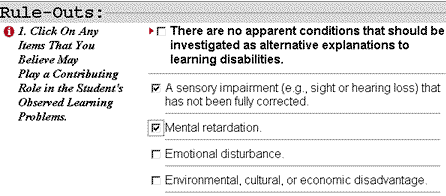
			According to the regulations 
			<TABLE ALIGN="LEFT" BORDER="0" CELLPADDING="3" CELLSPACING="0" BGCOLOR="#CCCCFF">
				<TR>
					<TD><B><FONT COLOR="blue" FACE="Courier New, Courier">Figure 4: Excerpt from Rule-Outs Page</FONT></B></TD>
				</TR>
				<TR>
					<TD><IMG SRC="graphics/ruleoutsec.gif" WIDTH="446" HEIGHT="196" ALIGN="BOTTOM" BORDER="1"></TD>
				</TR>
				<TR>
					<TD><IMG SRC="graphics/pixelgif.gif" WIDTH="1" HEIGHT="5" ALIGN="BOTTOM" BORDER="0"></TD>
				</TR>
			</TABLE>
of both the Federal Government and most state educational agencies, learning disabilities cannot be diagnosed unless
			competing explanations for learning problems have been carefully considered and ruled out. <BR>
			<BR>
			The Rule-Outs page contains a listing of the most common reasons for student educational failure. You should read
			through each of the items. If you believe that an item <I>may explain the student's learning difficulties </I>or
			<I>play an important contributing role in these difficulties</I>, check the item. Only if you believe, based on
			your knowledge of the student, that the student's learning problems are <I>not</I> caused by any of the factors
			listed, should you check the item: <I>There are no apparent conditions that should be investigated as alternative
			explanations to learning disabilities.</I> To record selected rule-outs, click the &quot;Enter Selected Rule-Outs&quot;
			button.<BR>
			<BR>
			On the final test discrepancy report, those items that <I>were not endorsed </I>will appear as having been conclusively
			ruled out. Those items that <I>were endorsed</I> will appear on the final report as suspected or known to have
			contributed to the student's learning problems.</TD>
	</TR>
	<TR>
		<TD WIDTH="100%">
			<TABLE BORDER="0" CELLPADDING="0" CELLSPACING="0" WIDTH="100%">
				<TR>
					<TD WIDTH="94%" HEIGHT="6" VALIGN="BOTTOM">&nbsp;</TD>
					<TD WIDTH="11" HEIGHT="6" VALIGN="BOTTOM"><A HREF="#topAnchor"><IMG SRC="graphics/toparrow.gif" WIDTH="11" HEIGHT="6" ALIGN="RIGHT" BORDER="0"></A></TD>
				</TR>
				<TR>
					<TD VALIGN="TOP" COLSPAN="2">
<HR ALIGN="RIGHT" SIZE="1" NOSHADE>
					</TD>
				</TR>
			</TABLE>
		</TD>
	</TR>
	<TR>
		<TD WIDTH="100%"><A NAME="IQ"></A><FONT SIZE="5" FACE="Arial, Helvetica">IQ Test Selection.</FONT> <BR>
			On this page, you select the intelligence- test 
			<TABLE ALIGN="LEFT" BORDER="0" CELLPADDING="0" CELLSPACING="0" WIDTH="666" BGCOLOR="#CCCCFF">
				<TR>
					<TD WIDTH="378" VALIGN="TOP">
						<TABLE ALIGN="LEFT" BORDER="0" CELLPADDING="3" CELLSPACING="0" WIDTH="370" BGCOLOR="#CCCCFF">
							<TR>
								<TD><B><FONT FACE="Courier New, Courier"><BR>
									</FONT><FONT COLOR="blue" FACE="Courier New, Courier">Figure 5: Deleting IQ Tests from<BR>
									Your Selected List</FONT></B></TD>
							</TR>
							<TR>
								<TD><IMG SRC="graphics/iqdroptest.gif" WIDTH="360" HEIGHT="82" ALIGN="BOTTOM" BORDER="1"></TD>
							</TR>
							<TR>
								<TD><IMG SRC="graphics/pixelgif.gif" WIDTH="1" HEIGHT="5" ALIGN="BOTTOM" BORDER="0"></TD>
							</TR>
						</TABLE>
					</TD>
					<TD WIDTH="288">
						<TABLE ALIGN="LEFT" BORDER="0" CELLPADDING="3" CELLSPACING="0" WIDTH="280" BGCOLOR="#CCCCFF">
							<TR>
								<TD WIDTH="272"><B><FONT COLOR="blue" FACE="Courier New, Courier">Figure 6: Selecting an IQ Test From the TSA 2.0 Database</FONT></B></TD>
							</TR>
							<TR>
								<TD WIDTH="272"><IMG SRC="graphics/iqpreformat.gif" WIDTH="270" HEIGHT="106" ALIGN="BOTTOM" BORDER="1"></TD>
							</TR>
							<TR>
								<TD WIDTH="272"><IMG SRC="graphics/pixelgif.gif" WIDTH="1" HEIGHT="5" ALIGN="BOTTOM" BORDER="0"></TD>
							</TR>
						</TABLE>
					</TD>
				</TR>
			</TABLE>
measures to be included in a test discrepancy report. <BR>
			<BR>
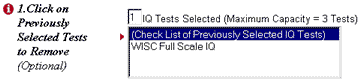
			At the top of the page (see Figure 5), those tests that you have already selected will appear. If you click on
			the title of an already-selected test, you will be given the option of deleting the test from your selected list.
			You can enter up to 3 intelligence-test scores for a discrepancy analysis.<BR>
			<BR>
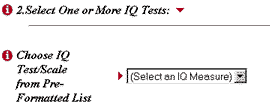
			The TSA 2.0 has a database of pre-entered test statistics from commonly used intelligence measures. You can browse
			through the pre-entered IQ tests by using the drop-menu. (See Figure 6.)<BR>
			<BR>
			If 
			<TABLE ALIGN="LEFT" BORDER="0" CELLPADDING="0" CELLSPACING="0" WIDTH="456" BGCOLOR="#CCCCFF">
				<TR>
					<TD>
						<TABLE ALIGN="LEFT" BORDER="0" CELLPADDING="3" CELLSPACING="0" BGCOLOR="#CCCCFF">
							<TR>
								<TD><B><FONT COLOR="blue" FACE="Courier New, Courier">Figure 7: Entering Your Own IQ Test <BR>
									Information</FONT></B></TD>
							</TR>
							<TR>
								<TD><IMG SRC="graphics/iqusertest.gif" WIDTH="443" HEIGHT="113" ALIGN="BOTTOM" BORDER="1"></TD>
							</TR>
							<TR>
								<TD><IMG SRC="graphics/pixelgif.gif" WIDTH="1" HEIGHT="5" ALIGN="BOTTOM" BORDER="0"></TD>
							</TR>
						</TABLE>
					</TD>
				</TR>
				<TR>
					<TD>
						<TABLE ALIGN="LEFT" BORDER="0" CELLPADDING="3" CELLSPACING="0" BGCOLOR="#CCCCFF">
							<TR>
								<TD><B><FONT COLOR="blue" FACE="Courier New, Courier">Figure 8: Entering IQ Score and Verifying<BR>
									Test Information</FONT></B></TD>
							</TR>
							<TR>
								<TD><IMG SRC="graphics/iqrecordscore.gif" WIDTH="421" HEIGHT="202" ALIGN="BOTTOM" BORDER="1"></TD>
							</TR>
							<TR>
								<TD><IMG SRC="graphics/pixelgif.gif" WIDTH="1" HEIGHT="5" ALIGN="BOTTOM" BORDER="0"></TD>
							</TR>
						</TABLE>
					</TD>
				</TR>
			</TABLE>
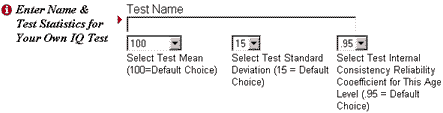
you don't find the IQ test that you are looking for in the TSA 2.0's database, you can enter your own test information
			(See Figure 7). Be sure to have the test manual on hand when entering your own test data. <BR>
			<BR>
			You will need to type in a test name, the mean score for the test (set to a default value of 100), and the test
			standard deviation (set to a default value of 15). The program also requires that you enter the internal consistency
			reliability coefficient that corresponds to the student's age (set to a default value of .95). (This information
			should appear in a table in the test manual.) <BR>
			<BR>
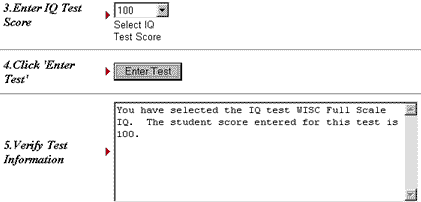
			Once you have either selected a test from the TSA 2.0 database or entered your own test information, you enter
			the student's IQ test score, using the drop-menu. (See Figure 8). Click the &quot;Enter Test&quot; button to record
			your test information, and review the information that you entered in the &quot;Verify Test Information&quot; box.<BR>
			<BR>
			When selecting intelligence tests to enter into the discrepancy program, try as a rule to use global scales estimates
			of student aptitude, or cognitive potential. Because global scales typically are compiled from a number of sub-tests,
			they sample a wide range of student abilities and thus tend to be accurate and stable predictors of student achievement.
			In contrast, sub-scales or sub-tests are not usually desirable candidates as measures of intellectual potential
			because they are based on a less comprehensive inventory of student problem-solving behaviors. Similarly, pro-rating
			of test scores (that is, estimating a global scale based on results from an incomplete set of sub-tests) should
			only be done when the examiner has a clear and defensible clinical rationale for doing so. Occasionally, of course,
			we have little choice but to estimate a child's intellectual potential using only partial test results--but the
			practice should be avoided whenever possible and its limitations acknowledged when it does occur.</TD>
	</TR>
	<TR>
		<TD WIDTH="100%">
			<TABLE BORDER="0" CELLPADDING="0" CELLSPACING="0" WIDTH="100%">
				<TR>
					<TD WIDTH="94%" HEIGHT="6" VALIGN="BOTTOM">&nbsp;</TD>
					<TD WIDTH="11" HEIGHT="6" VALIGN="BOTTOM"><A HREF="#topAnchor"><IMG SRC="graphics/toparrow.gif" WIDTH="11" HEIGHT="6" ALIGN="RIGHT" BORDER="0"></A></TD>
				</TR>
				<TR>
					<TD VALIGN="TOP" COLSPAN="2">
<HR ALIGN="RIGHT" SIZE="1" NOSHADE>
					</TD>
				</TR>
			</TABLE>
		</TD>
	</TR>
	<TR>
		<TD WIDTH="100%"><A NAME="Achievement"></A><FONT SIZE="5" FACE="Arial, Helvetica">Achievement Test Selection.</FONT> <BR>
			On this page, you select the achievement- test 
			<TABLE ALIGN="LEFT" BORDER="0" CELLPADDING="0" CELLSPACING="0" WIDTH="789" BGCOLOR="#CCCCFF">
				<TR>
					<TD WIDTH="402" VALIGN="TOP">
						<TABLE BORDER="0" CELLPADDING="0" CELLSPACING="0" BGCOLOR="#CCCCFF">
							<TR>
								<TD><B><FONT FACE="Courier New, Courier"><BR>
									</FONT><FONT COLOR="blue" FACE="Courier New, Courier">Figure 9: Deleting Achievement<BR>
									Tests from Your Selected List</FONT></B></TD>
							</TR>
							<TR>
								<TD><IMG SRC="graphics/achdroptest.gif" WIDTH="392" HEIGHT="98" ALIGN="BOTTOM" BORDER="1"></TD>
							</TR>
							<TR>
								<TD><IMG SRC="graphics/pixelgif.gif" WIDTH="1" HEIGHT="5" ALIGN="BOTTOM" BORDER="0"></TD>
							</TR>
						</TABLE>
					</TD>
					<TD WIDTH="387">
						<TABLE ALIGN="LEFT" BORDER="0" CELLPADDING="0" CELLSPACING="0" WIDTH="379" BGCOLOR="#CCCCFF">
							<TR>
								<TD><B><FONT COLOR="blue" FACE="Courier New, Courier">Figure 10: Selecting an<BR>
									Achievement Test From the TSA 2.0 Database</FONT></B></TD>
							</TR>
							<TR>
								<TD VALIGN="TOP"><IMG SRC="graphics/achpreformat.gif" WIDTH="369" HEIGHT="116" ALIGN="BOTTOM" BORDER="1"></TD>
							</TR>
							<TR>
								<TD><IMG SRC="graphics/pixelgif.gif" WIDTH="1" HEIGHT="5" ALIGN="BOTTOM" BORDER="0"></TD>
							</TR>
						</TABLE>
					</TD>
				</TR>
			</TABLE>
measures to be included in a test discrepancy report. <BR>
			<BR>
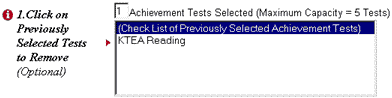
			At the top of the page (see Figure 9), those tests that you have already selected will appear. If you click on
			the title of an already-selected test, you will be given the option of deleting the test from your selected list.
			You can enter up to 5 achievement test scores for a discrepancy analysis.<BR>
			<BR>
			The TSA 2.0 has a database of pre-entered test statistics from commonly used achievement measures. 
			<TABLE ALIGN="LEFT" BORDER="0" CELLPADDING="0" CELLSPACING="0" WIDTH="456" BGCOLOR="#CCCCFF">
				<TR>
					<TD>
						<TABLE ALIGN="LEFT" BORDER="0" CELLPADDING="3" CELLSPACING="0" BGCOLOR="#CCCCFF">
							<TR>
								<TD><B><FONT COLOR="blue" FACE="Courier New, Courier">Figure 11: Entering Your Own Achievement<BR>
									Test Information</FONT></B></TD>
							</TR>
							<TR>
								<TD><IMG SRC="graphics/achusertest.gif" WIDTH="438" HEIGHT="111" ALIGN="BOTTOM" BORDER="1"></TD>
							</TR>
						</TABLE>
					</TD>
				</TR>
				<TR>
					<TD>
						<TABLE ALIGN="LEFT" BORDER="0" CELLPADDING="3" CELLSPACING="0" WIDTH="431" BGCOLOR="#CCCCFF">
							<TR>
								<TD><B><FONT COLOR="blue" FACE="Courier New, Courier">Figure 12: Entering Achievement Test Score and Verifying Test
									Information</FONT></B></TD>
							</TR>
							<TR>
								<TD><IMG SRC="graphics/achrecordscore.gif" WIDTH="406" HEIGHT="208" ALIGN="BOTTOM" BORDER="1"></TD>
							</TR>
							<TR>
								<TD><IMG SRC="graphics/pixelgif.gif" WIDTH="1" HEIGHT="5" ALIGN="BOTTOM" BORDER="0"></TD>
							</TR>
						</TABLE>
					</TD>
				</TR>
			</TABLE>
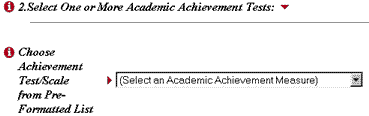
You can browse through the pre-entered academic achievement tests by using the drop-menu. (See Figure 10.)<BR>
			<BR>
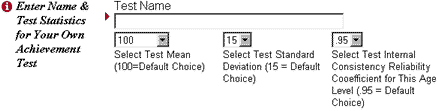
			If you don't find the achievement test that you are looking for in the TSA 2.0's database, you can enter your own
			test information (See Figure 11). Be sure to have the test manual on hand when entering your own test data. <BR>
			<BR>
			You will need to type in a test name, the mean score for the test (set to a default value of 100), and the test
			standard deviation (set to a default value of 15). The program also requires that you enter the internal consistency
			reliability coefficient that corresponds to the student's age (set to a default value of .95). (This information
			should appear in a table in the test manual.) <BR>
			<BR>
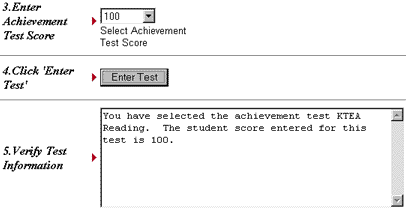
			Once you have either selected a test from the TSA 2.0 database or entered your own test information, you enter
			the student's achievement test score, using the drop-menu. (See Figure 12). Click the &quot;Enter Test&quot; button
			to record your test information, and review the information that you entered in the &quot;Verify Test Information&quot;
			box.<BR>
			<BR>
			<I>A Note of Caution.</I> The TSA 2.0 can accommodate up to 3 IQ tests and 5 achievement tests at once, permitting
			the examiner to run 15 test-score discrepancy comparisons at one time. A temptation may be to &quot;data-snoop&quot;
			by running multiple comparisons of student test scores to see if one or more are found to be severely discrepant.
			A danger in running multiple discrepancy comparisons is that, as the number of comparisons run increases, so too
			does the possibility that you will find a severe discrepancy that occurred solely by chance. As a responsible tester,
			you usually should have an idea in advance of your testing in what areas the student is having academic difficulties.
			After testing, you would compare achievement scores in those academic domains in which you knew the student to
			be struggling to his or her IQ score(s). Most school psychologist trainers would agree, however, that in the absence
			of a compelling rationale, one should not simply plug in &quot;found&quot; low achievement scores in an effort
			to fish for severe IQ/Achievement discrepancies.</TD>
	</TR>
	<TR>
		<TD WIDTH="100%">
			<TABLE BORDER="0" CELLPADDING="0" CELLSPACING="0" WIDTH="100%">
				<TR>
					<TD WIDTH="94%" HEIGHT="6" VALIGN="BOTTOM">&nbsp;</TD>
					<TD WIDTH="11" HEIGHT="6" VALIGN="BOTTOM"><A HREF="#topAnchor"><IMG SRC="graphics/toparrow.gif" WIDTH="11" HEIGHT="6" ALIGN="RIGHT" BORDER="0"></A></TD>
				</TR>
				<TR>
					<TD VALIGN="TOP" COLSPAN="2">
<HR ALIGN="RIGHT" SIZE="1" NOSHADE>
					</TD>
				</TR>
			</TABLE>
		</TD>
	</TR>
	<TR>
		<TD WIDTH="100%">
			<P><A NAME="Preferred"></A><FONT SIZE="5" FACE="Arial, Helvetica">Preferred Settings.</FONT> <BR>
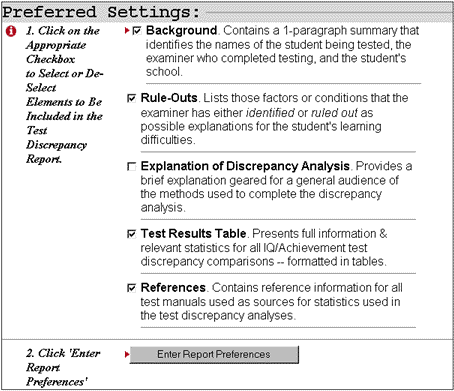
			The <I>Preferred Settings </I>page allows you to customize your test discrepancy report by s 
			<TABLE ALIGN="LEFT" BORDER="0" CELLSPACING="0" WIDTH="465" BGCOLOR="#CCCCFF">
				<TR>
					<TD WIDTH="461"><B><FONT COLOR="blue" FACE="Courier New, Courier">Figure 13: Preferred Settings Page</FONT></B></TD>
				</TR>
				<TR>
					<TD WIDTH="461"><IMG SRC="graphics/testprefspg.gif" WIDTH="454" HEIGHT="391" ALIGN="BOTTOM" BORDER="1"></TD>
				</TR>
			</TABLE>
electing sections to include or exclude. Here is a brief review of report options from which you can choose:
			<UL>
				<LI><I>Background. </I>Contains a brief paragraph summarizing background information such as the name and age of
				the student, name of the examiner, and the school or program that the student attends.
				<P>
				<LI><I>Rule-Outs</I>. Displays those factors or conditions that you endorse to rule-in or rule-out alternative
				explanations for student learning problems.
				<P>
				<LI><I>Explanation of Discrepancy Analysis.</I> Presents a 1-paragraph explanation of the statistical formula used
				to conduct the test discrepancy analysis. This section can be included to help lay persons better understand reasons
				for running test-discrepancy analyses.
				<P>
				<LI><I>Test Results Table</I>. The results of each IQ/Achievement discrepancy analysis are formatted in their own
				table for quick review.
				<P>
				<LI><I>References</I>. Test manual reference information appears in this section for any tests that are entered
				into the TSA 2.0 database.
			</UL>
			<P>NOTE: The current default settings include all sections of the report except the &quot;Explanation of Discrepancy
			Analysis&quot;.
		</TD>
	</TR>
	<TR>
		<TD WIDTH="100%">
			<TABLE BORDER="0" CELLPADDING="0" CELLSPACING="0" WIDTH="100%">
				<TR>
					<TD WIDTH="94%" HEIGHT="6" VALIGN="BOTTOM">&nbsp;</TD>
					<TD WIDTH="11" HEIGHT="6" VALIGN="BOTTOM"><A HREF="#topAnchor"><IMG SRC="graphics/toparrow.gif" WIDTH="11" HEIGHT="6" ALIGN="RIGHT" BORDER="0"></A></TD>
				</TR>
				<TR>
					<TD VALIGN="TOP" COLSPAN="2">
<HR ALIGN="RIGHT" SIZE="1" NOSHADE>
					</TD>
				</TR>
			</TABLE>
		</TD>
	</TR>
	<TR>
		<TD WIDTH="100%"><A NAME="TSA"></A><FONT SIZE="5" FACE="Arial, Helvetica">TSA 2.0 Discrepancy Report.</FONT> <BR>
			Once 
			<TABLE ALIGN="LEFT" BORDER="0" CELLPADDING="3" CELLSPACING="0" WIDTH="635" BGCOLOR="#CCCCFF">
				<TR>
					<TD><B><FONT COLOR="blue" FACE="Courier New, Courier">Figure 14: Test Table Excerpt <BR>
						from TSA 2.0 Discrepancy Report</FONT></B></TD>
				</TR>
				<TR>
					<TD><IMG SRC="graphics/testtable.gif" WIDTH="651" HEIGHT="228" ALIGN="BOTTOM" BORDER="1"></TD>
				</TR>
				<TR>
					<TD><IMG SRC="graphics/pixelgif.gif" WIDTH="1" HEIGHT="5" ALIGN="BOTTOM" BORDER="0"></TD>
				</TR>
			</TABLE>
you have entered all essential test information, you can view the final test report. You can view the report by
			clicking the &quot;View Test Report&quot; button that appears at the top of the application's web pages. <BR>
			<BR>
			The report is intended to present to the reader all of the essential information needed to evaluate and make sense
			of the test score comparisons. TSA 2.0 gives you complete freedom to pick only those sections that you want to
			appear in the final report. (See <I>Preferred Settings</I> above.)<BR>
			<BR>
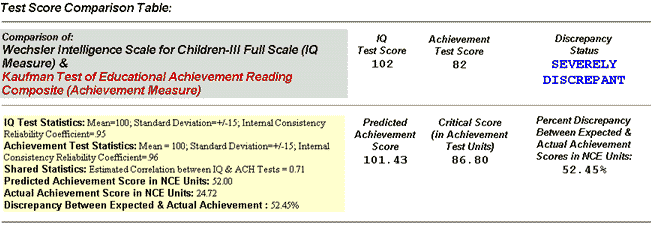
			Figure 14 displays a sample Test Score Comparison Table, which comprises the heart of the report. Organized within
			this table are all of the relevant test statistics used to run the test discrepancy analysis.<BR>
			<BR>
			Information is organized in this table to be as accessible and useful as possible to the reader. For example, you
			can quickly determine the outcome of the score comparison by looking at the &quot;Discrepancy Status&quot;. Readers
			who wish to know the &quot;percent discrepancy&quot; (actually, NCE unit discrepancy) between expected and actual
			achievement scores can find that information on the report as well.</TD>
	</TR>
	<TR>
		<TD WIDTH="100%">
			<TABLE BORDER="0" CELLPADDING="0" CELLSPACING="0" WIDTH="100%">
				<TR>
					<TD WIDTH="94%" HEIGHT="6" VALIGN="BOTTOM">&nbsp;</TD>
					<TD WIDTH="11" HEIGHT="6" VALIGN="BOTTOM"><A HREF="#topAnchor"><IMG SRC="graphics/toparrow.gif" WIDTH="11" HEIGHT="6" ALIGN="RIGHT" BORDER="0"></A></TD>
				</TR>
				<TR>
					<TD VALIGN="TOP" COLSPAN="2">
<HR ALIGN="RIGHT" SIZE="1" NOSHADE>
					</TD>
				</TR>
			</TABLE>
		</TD>
	</TR>
	<TR>
		<TD WIDTH="100%">
			<TABLE BORDER="0" CELLSPACING="5" WIDTH="100%">
				<TR>
					<TD WIDTH="33%" VALIGN="BOTTOM"><A NAME="testAbbreviations"></A><FONT SIZE="6" COLOR="#000099" FACE="Arial, Helvetica">Test Abbreviation</FONT></TD>
					<TD WIDTH="33%" VALIGN="BOTTOM"><FONT SIZE="6" COLOR="#000099" FACE="Arial, Helvetica">Test Title</FONT></TD>
					<TD WIDTH="34%" VALIGN="BOTTOM"><FONT SIZE="6" COLOR="#000099" FACE="Arial, Helvetica">Publisher</FONT></TD>
				</TR>
				<TR>
					<TD COLSPAN="3">
<HR ALIGN="CENTER" SIZE="1" NOSHADE>
					</TD>
				</TR>
				<TR>
					<TD WIDTH="33%" HEIGHT="19" VALIGN="TOP">
						<UL>
							<LI><B><FONT SIZE="4" FACE="Courier New, Courier">DAS</FONT></B>
						</UL>
					</TD>
					<TD WIDTH="33%" HEIGHT="19" VALIGN="TOP"><B><FONT SIZE="4" FACE="Courier New, Courier">Differential Ability Scale</FONT></B></TD>
					<TD WIDTH="34%" HEIGHT="19" VALIGN="TOP"><B><FONT SIZE="4" FACE="Courier New, Courier">The Psychological Corporation</FONT></B></TD>
				</TR>
				<TR>
					<TD WIDTH="33%" VALIGN="TOP">
						<UL>
							<LI><B><FONT SIZE="4" FACE="Courier New, Courier">KABC</FONT></B>
						</UL>
					</TD>
					<TD WIDTH="33%" VALIGN="TOP"><B><FONT SIZE="4" FACE="Courier New, Courier">Kaufman Assessment Battery for Children</FONT></B></TD>
					<TD WIDTH="34%" VALIGN="TOP"><B><FONT SIZE="4" FACE="Courier New, Courier">American Guidance Service</FONT></B></TD>
				</TR>
				<TR>
					<TD WIDTH="33%" VALIGN="TOP">
						<UL>
							<LI><B><FONT SIZE="4" FACE="Courier New, Courier">KeyMath-R</FONT></B>
						</UL>
					</TD>
					<TD WIDTH="33%" VALIGN="TOP"><B><FONT SIZE="4" FACE="Courier New, Courier">KeyMath-Revised</FONT></B></TD>
					<TD WIDTH="34%" VALIGN="TOP"><B><FONT SIZE="4" FACE="Courier New, Courier">American Guidance Service</FONT></B></TD>
				</TR>
				<TR>
					<TD WIDTH="33%" VALIGN="TOP">
						<UL>
							<LI><B><FONT SIZE="4" FACE="Courier New, Courier">KTEA</FONT></B>
						</UL>
					</TD>
					<TD WIDTH="33%" VALIGN="TOP"><B><FONT SIZE="4" FACE="Courier New, Courier">Kaufman Test of Educational Achievement</FONT></B></TD>
					<TD WIDTH="34%" VALIGN="TOP"><B><FONT SIZE="4" FACE="Courier New, Courier">American Guidance Service</FONT></B></TD>
				</TR>
				<TR>
					<TD WIDTH="33%" VALIGN="TOP">
						<UL>
							<LI><B><FONT SIZE="4" FACE="Courier New, Courier">SB-IV</FONT></B>
						</UL>
					</TD>
					<TD WIDTH="33%" VALIGN="TOP"><B><FONT SIZE="4" FACE="Courier New, Courier">Stanford-Binet Intelligence Scale-4th Edition</FONT></B></TD>
					<TD WIDTH="34%" VALIGN="TOP"><B><FONT SIZE="4" FACE="Courier New, Courier">The Riverside Publishing Corporation</FONT></B></TD>
				</TR>
				<TR>
					<TD WIDTH="33%" VALIGN="TOP">
						<UL>
							<LI><B><FONT SIZE="4" FACE="Courier New, Courier">TERA-2</FONT></B>
						</UL>
					</TD>
					<TD WIDTH="33%" VALIGN="TOP"><B><FONT SIZE="4" FACE="Courier New, Courier">Test of Early Reading Ability-2nd Edition</FONT></B></TD>
					<TD WIDTH="34%" VALIGN="TOP"><B><FONT SIZE="4" FACE="Courier New, Courier">Pro-Ed,Inc.</FONT></B></TD>
				</TR>
				<TR>
					<TD WIDTH="33%" VALIGN="TOP">
						<UL>
							<LI><B><FONT SIZE="4" FACE="Courier New, Courier">WIAT</FONT></B>
						</UL>
					</TD>
					<TD WIDTH="33%" VALIGN="TOP"><B><FONT SIZE="4" FACE="Courier New, Courier">Wechsler Individual Achievement Test</FONT></B></TD>
					<TD WIDTH="34%" VALIGN="TOP"><B><FONT SIZE="4" FACE="Courier New, Courier">The Psychological Corporation</FONT></B></TD>
				</TR>
				<TR>
					<TD WIDTH="33%" VALIGN="TOP">
						<UL>
							<LI><B><FONT SIZE="4" FACE="Courier New, Courier">WISC-III</FONT></B>
						</UL>
					</TD>
					<TD WIDTH="33%" VALIGN="TOP"><B><FONT SIZE="4" FACE="Courier New, Courier">Wechsler Intelligence Scale for Children-3rd Edition</FONT></B></TD>
					<TD WIDTH="34%" VALIGN="TOP"><B><FONT SIZE="4" FACE="Courier New, Courier">The Psychological Corporation</FONT></B></TD>
				</TR>
				<TR>
					<TD WIDTH="33%" VALIGN="TOP">
						<UL>
							<LI><B><FONT SIZE="4" FACE="Courier New, Courier">WPPSI-R</FONT></B>
						</UL>
					</TD>
					<TD WIDTH="33%" VALIGN="TOP"><B><FONT SIZE="4" FACE="Courier New, Courier">Wechsler Preschool and Primary Scale of Intelligence-Revised</FONT></B></TD>
					<TD WIDTH="34%" VALIGN="TOP"><B><FONT SIZE="4" FACE="Courier New, Courier">The Psychological Corporation</FONT></B></TD>
				</TR>
				<TR>
					<TD WIDTH="33%" VALIGN="TOP">
						<UL>
							<LI><B><FONT SIZE="4" FACE="Courier New, Courier">WRAT3</FONT></B>
						</UL>
					</TD>
					<TD WIDTH="33%" VALIGN="TOP"><B><FONT SIZE="4" FACE="Courier New, Courier">Wide Range Achievement Test-3rd Edition</FONT></B></TD>
					<TD WIDTH="34%" VALIGN="TOP"><B><FONT SIZE="4" FACE="Courier New, Courier">Wide Range,Inc.</FONT></B></TD>
				</TR>
			</TABLE>
		</TD>
	</TR>
	<TR>
		<TD WIDTH="100%">
			<TABLE BORDER="0" CELLPADDING="0" CELLSPACING="0" WIDTH="100%">
				<TR>
					<TD WIDTH="94%" HEIGHT="6" VALIGN="BOTTOM">&nbsp;</TD>
					<TD WIDTH="11" HEIGHT="6" VALIGN="BOTTOM"><A HREF="#topAnchor"><IMG SRC="graphics/toparrow.gif" WIDTH="11" HEIGHT="6" ALIGN="RIGHT" BORDER="0"></A></TD>
				</TR>
				<TR>
					<TD VALIGN="TOP" COLSPAN="2">
<HR ALIGN="RIGHT" SIZE="1" NOSHADE>
					</TD>
				</TR>
			</TABLE>
		</TD>
	</TR>
	<TR>
		<TD WIDTH="100%"><A NAME="References"></A><FONT SIZE="5" FACE="Arial, Helvetica">References</FONT><BR>
			Wechsler, D. (1991). <I>Wechsler Intelligence Scale for Children-Third Edition Manual.</I> San Antonio: The Psychological
			Corporation.</TD>
	</TR>
	<TR>
		<TD WIDTH="100%">
			<TABLE BORDER="0" CELLPADDING="0" CELLSPACING="0" WIDTH="100%">
				<TR>
					<TD WIDTH="94%" HEIGHT="6" VALIGN="BOTTOM">&nbsp;</TD>
					<TD WIDTH="11" HEIGHT="6" VALIGN="BOTTOM"><A HREF="#topAnchor"><IMG SRC="graphics/toparrow.gif" WIDTH="11" HEIGHT="6" ALIGN="RIGHT" BORDER="0"></A></TD>
				</TR>
				<TR>
					<TD VALIGN="TOP" COLSPAN="2">
<HR ALIGN="RIGHT" SIZE="1" NOSHADE>
					</TD>
				</TR>
			</TABLE>
		</TD>
	</TR>
	<TR>
		<TD WIDTH="100%"></TD>
	</TR>
</TABLE>
<BR>
<FONT SIZE="5" FACE="Arial, Helvetica"></FONT></P>
<P ALIGN="CENTER"><B><A HREF="javaScript:window.close();"><FONT FACE="Courier New, Courier">Close Window</FONT></A></B>
</FORM>

</BODY>

</HTML>